
bbr marketing Blog
Related Articles
Yet More Updates To LinkedIn (aka Go Home LinkedIn, You’re Drunk)
By bbr
by Kelly Lucas, marketing and social media manager
In an effort to stay competitive with other social media platforms, LinkedIn has (yet again) made some changes to its platform, specifically the navigation bar and its links. These changes have left some very confused and wondering where to find the things that used to be so easy to locate. From the LinkedIn Help Center:
Inbox – Click the Inbox icon at the top right of your homepage to access your messages and invitations.
The top navigation bar disappears as you scroll down the page – To see it again, move your cursor to the top of the page. You’ll also see it when you scroll in the upward direction, or scroll all the way to the top.
Skills and Expertise – Go to https://www.linkedin.com/skills/, or move your cursor over any of the skills listed on a profile and click the title of the skill.
Recruiter link – If you have a Recruiter account, you’ll find the Recruiter link by moving your cursor over your profile photo at the top right of your homepage and selecting Go to Recruiter. You can also log into Recruiter via https://www.linkedin.com/recruiter/.
LinkedIn Today, Influencer Posts, and Channels – Move your cursor over Interests at the top of your homepage and select Influencers.
Your Company Page – Move your cursor over Interests and select Companies. Then search for your Company and click its name in the dropdown list.
Groups – Move your cursor over Interests and select Groups. You’ll see the list of groups you are a member of.
Recommendations – Go to your profile page and scroll down to the Recommendations box.
Polls – Go to polls https://polls.linkedin.com/ or share polls within a group.
Students and Alumni – Go to LinkedIn Alumni at //www.linkedin.com/college/.
Signal – Go to https://www.linkedin.com/signal or click the Search icon at the top of your homepage and then click Updates in the top left.
Manage Team Accounts for Sales Navigator – If you’re a team admin, move your cursor over your profile photo at the top right of your homepage and select Manage Team Accounts.
Additionally, there were changes made to the search functionality and news updates, which you can read about on LinkedIn’s post Major LinkedIn Site Design Changes.
Change can be good but it can also be frustrating. LinkedIn has been pretty zealous with the changes as of late and some of them don’t always make sense to users. If you find there are other aspects of LinkedIn that are a little too different from what you’re used to or you find that you can’t locate something you need, let us know and we’ll do some digging and try to help you out.
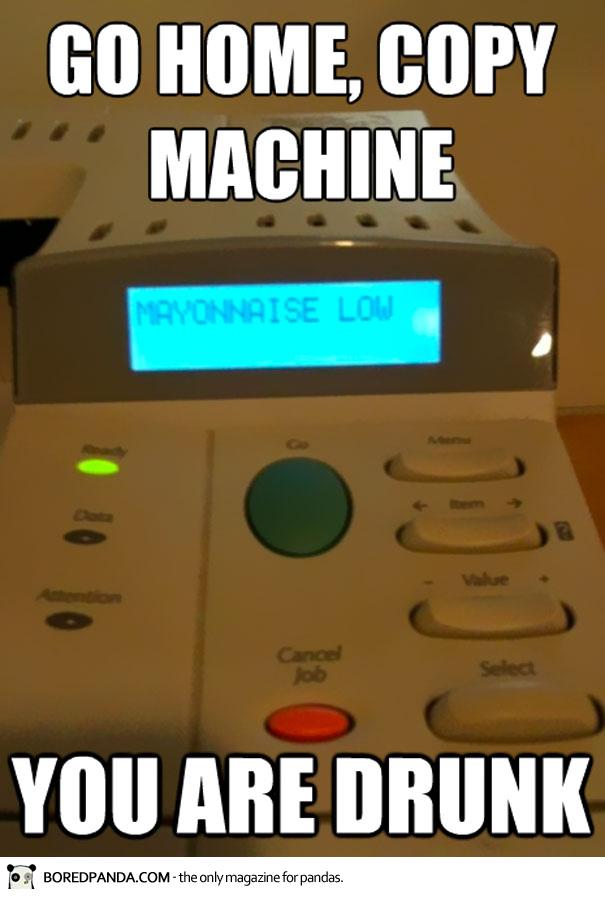
P.S. Since we referenced the “Go Home, You’re Drunk” meme in our title, here’s a little something to help brighten your day
Hi,
I’m stuck at “Move your cursor over Interests at the top of your homepage” in order to start a group. Any idea how groups are made in the new design – please?
Mak
In the new layout, click “Work” in the navigation bar up top. In the drop down, find and click the “Groups” icon. On the main LinkedIn Groups page, click “My Groups” in the top left, then you’ll click the blue “Create group” and you’re good to go!